Through the app, screen by screen.
MusiClover has a handful of screens. Below you walk through them one by one: what you see, what you can do and what happens then. No technical knowledge needed — although here and there we do mention how something works.
On this page
- The opening screen (splash)
- Getting acquainted — the first time
- The meadow — your home screen
- The practice lesson
- Your profile
- Settings
The opening screen
When you open the app, for a moment you see only the watercolour clover logo calmly appear on a warm paper colour. Nothing else — no buttons, no text.
A moment later the screen moves on by itself. It is deliberately identical to your phone's own launch screen, so the transition feels seamless.
- New user? You continue to the welcome.
- Coming back? You go straight to your meadow — the welcome is skipped.
Getting acquainted
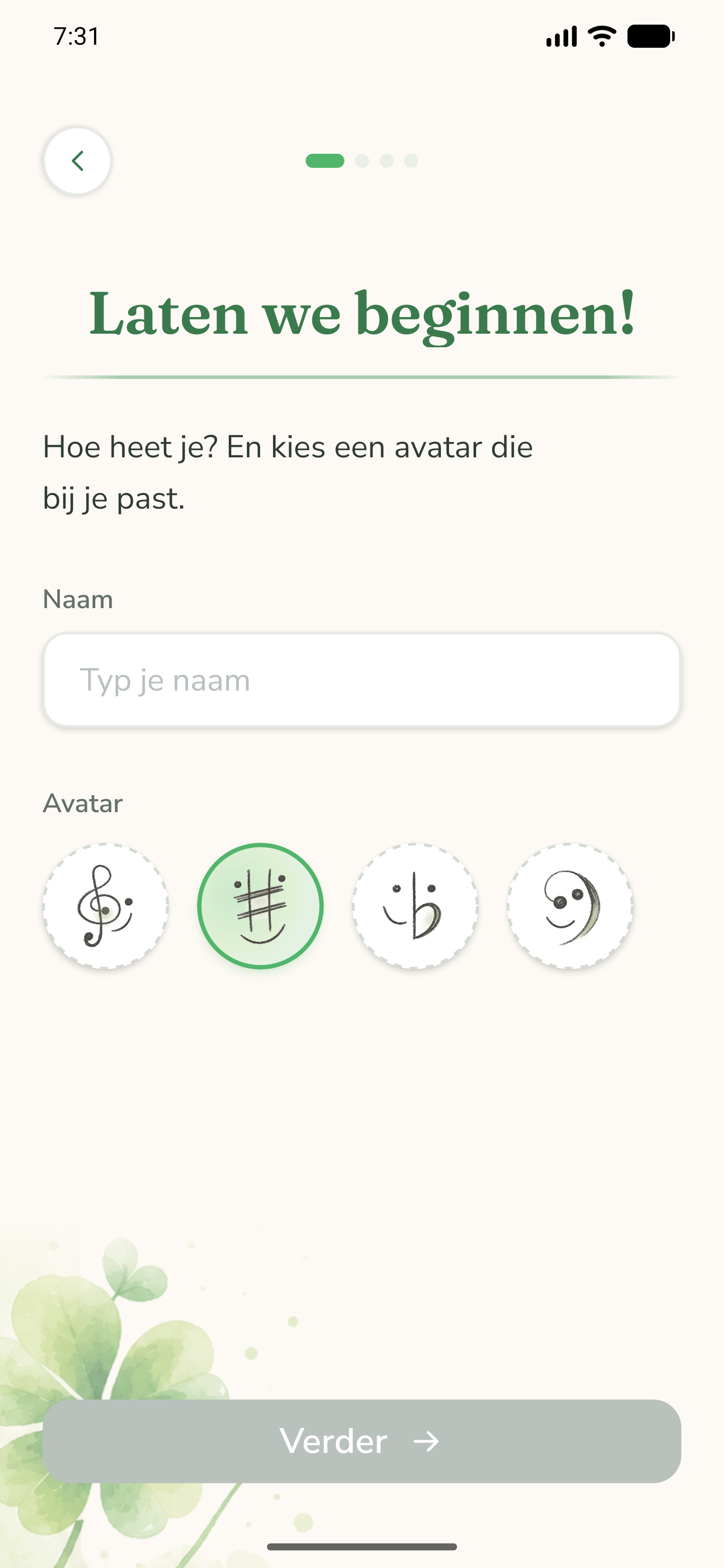
The first time, you go through a short welcome. At the top you see how far along you are; at the bottom a large button to continue. You type your name and choose an avatar, you choose an instrument (piano is ready; violin and guitar follow later), and you indicate how well you already read music — that decides where you start.
The button stays grey until you have entered a name. Your very first lesson is deliberately short; you can adjust the length yourself later.
The meadow
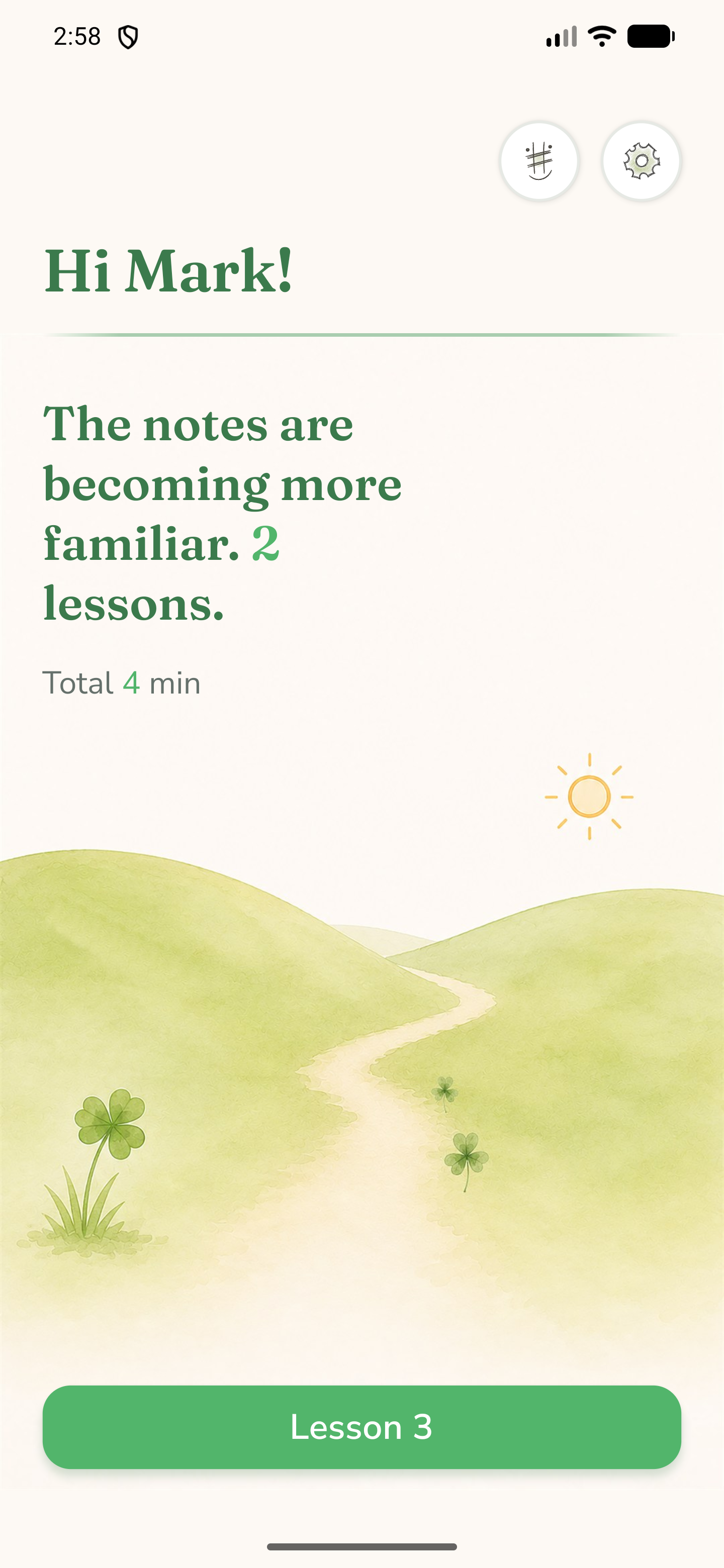
This is your home screen. The background is a painted meadow that changes as you progress — from a bare field to a full, blooming landscape. Every step forward brings a new scene.
You see a greeting (“Hi {your name}!”) and two lines of progress:
- “You have practised … lessons” — your number of completed sessions.
- “Total … min” — a rough estimate of your practice time.
- Top right: your avatar (to your profile) and a cog (to the settings).
- At the bottom: a large button Lesson {next number} to keep practising.
🌱 Did your meadow grow a stage after a lesson? Then the message “Your meadow has grown.” appears briefly.
The practice lesson
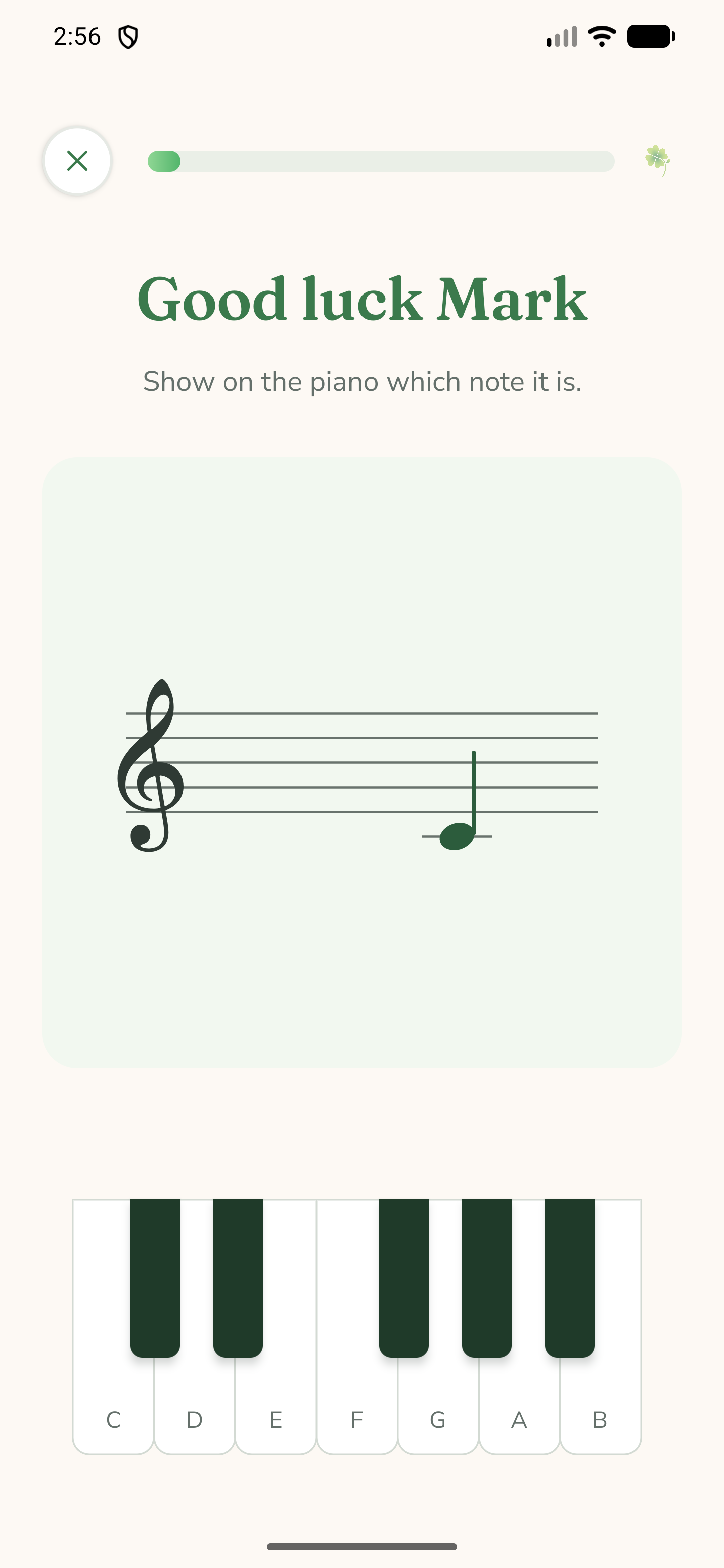
This is where you practise. In the middle is a staff with one note; at the bottom a piano keyboard. The task: show on the keyboard which note you see.
- Right? The key turns green, you read “Right! That is a …”, and after half a second the next note comes.
- Almost? You read “Almost! Try again.” — the same note stays until you get it right.
- Sound & vibration: every key plays its own tone and you feel a small buzz (both can be turned off).
- At the top: a progress bar (which fills with time) and a cross to stop.
The lesson runs on time, not on count: new notes keep coming until your chosen time is up. If you stop early with the cross, the lesson does not count — but what you have already practised is kept.
🎹 After your first lessons the letters on the keys disappear, so you really learn to read the note. You get a one-time message about this.
Your profile
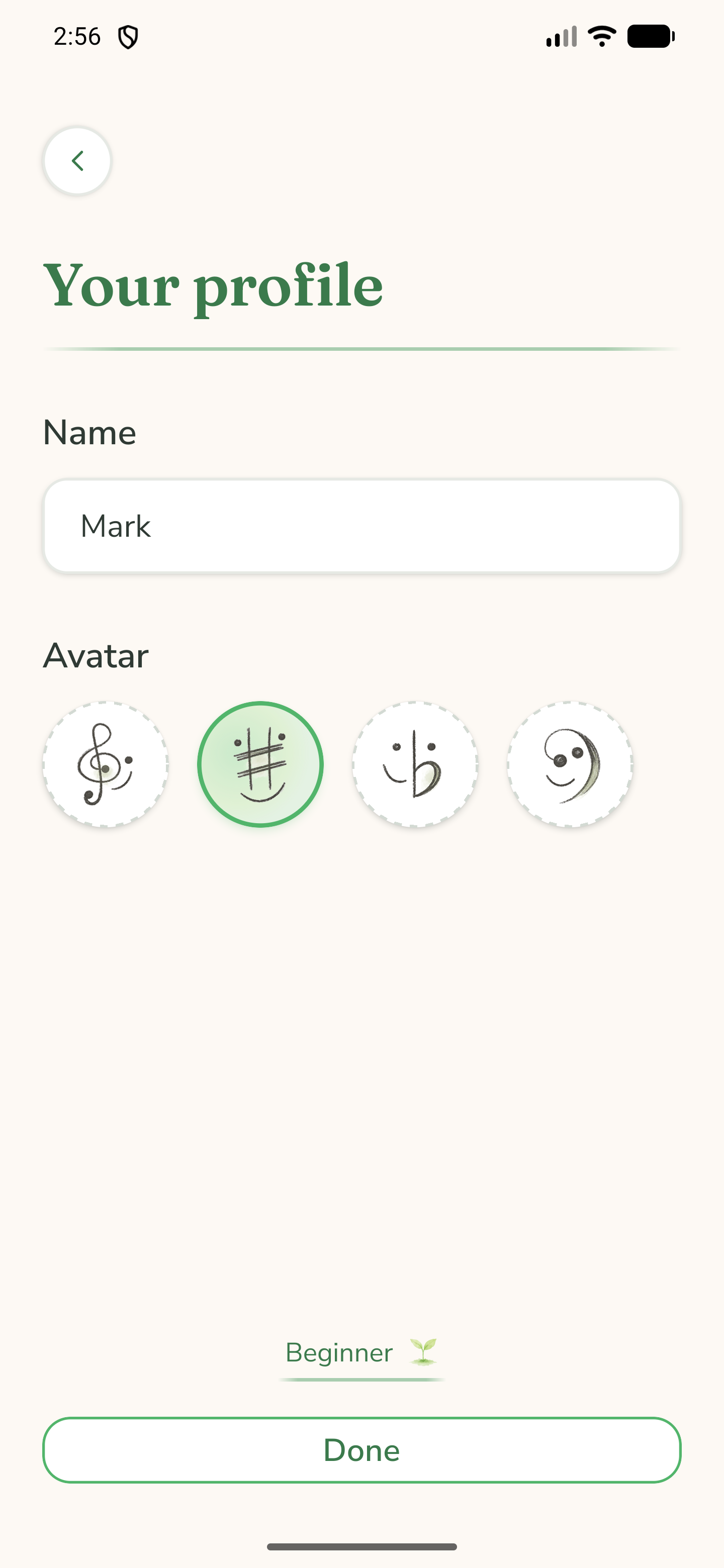
A simple screen to change your name and avatar. Changes are saved immediately, as you type or choose.
- Name & avatar: free to change.
- Level badge: shows which level you currently read at (for information only here).
- Buttons: “Back” and “Done” take you back to the meadow.
Settings
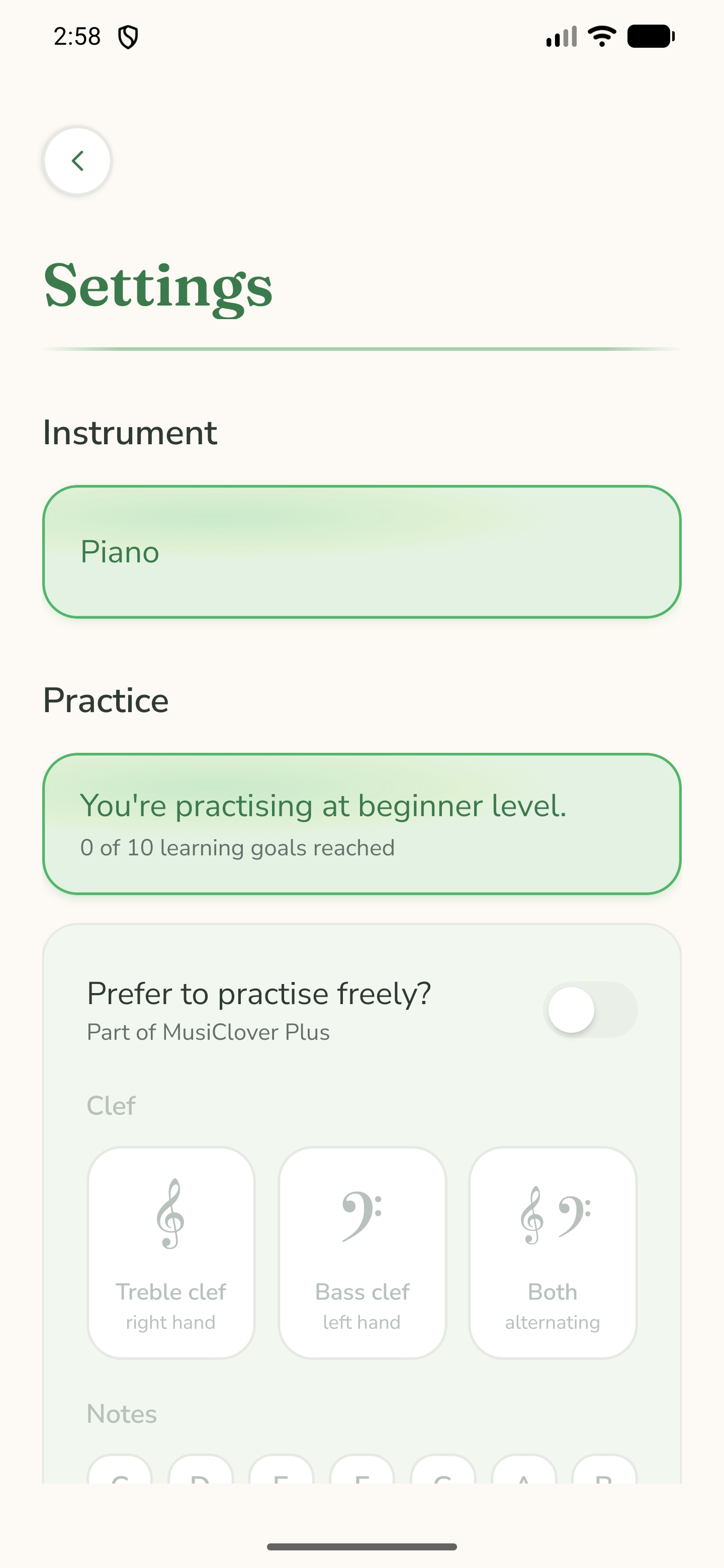
Here you set up the exercise exactly the way you want:
- Clef: treble clef (right hand) or bass clef (left hand).
- Accidentals: sharps, flats, both or none.
- Round length: choose how long a lesson lasts.
- Sound: sound, vibration and feedback during the lesson — each on or off.
- Language: English, Dutch, German or French.
At the bottom you can clear your progress. That asks for confirmation first (“Are you sure?”) and empties your meadow again — but, as the app says: “your practice stays in your fingers.”
Ready to try it yourself?
That is the whole app: a handful of calm screens, a meadow that grows with you, and your data that stays on your own device.